Consultationly's marketing email features let you create reusable email templates and connect your email account so that automated emails are sent directly from your own address.
Email settings are found in Admin Settings → Marketing.
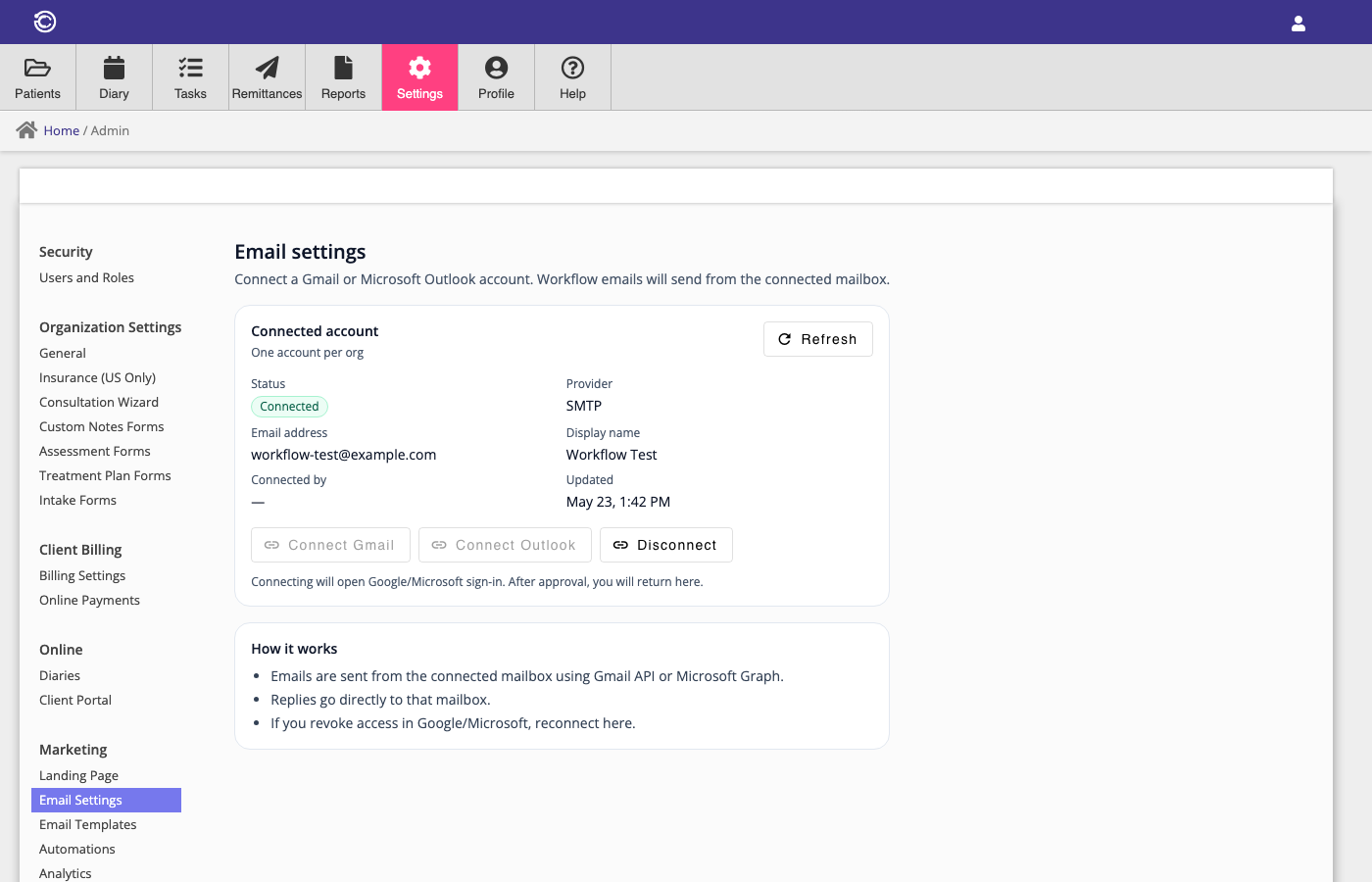
Email Account
Before automated emails can be sent, you need to connect an email account. This tells Consultationly which email address to send from. Connected email accounts appear under the Email Settings tab.
Connecting an Email Account
Click Connect Email Account and choose your email provider:
- Gmail — Connect a Google account using OAuth. You will be redirected to Google to sign in and grant permission. No password is stored; Consultationly uses a secure token that is refreshed automatically.
- Microsoft (Outlook / Office 365) — Connect a Microsoft account using OAuth. The same OAuth process applies — you are redirected to Microsoft to sign in and grant permission.
Once connected, the account email address and display name are shown on the Email Settings page. All marketing automation emails will be sent from this address.
Disconnecting an Email Account
Click Disconnect to remove the connected email account. The automation emails will stop sending until a new account is connected. Existing sent emails and tracking data are not affected.
Email Templates
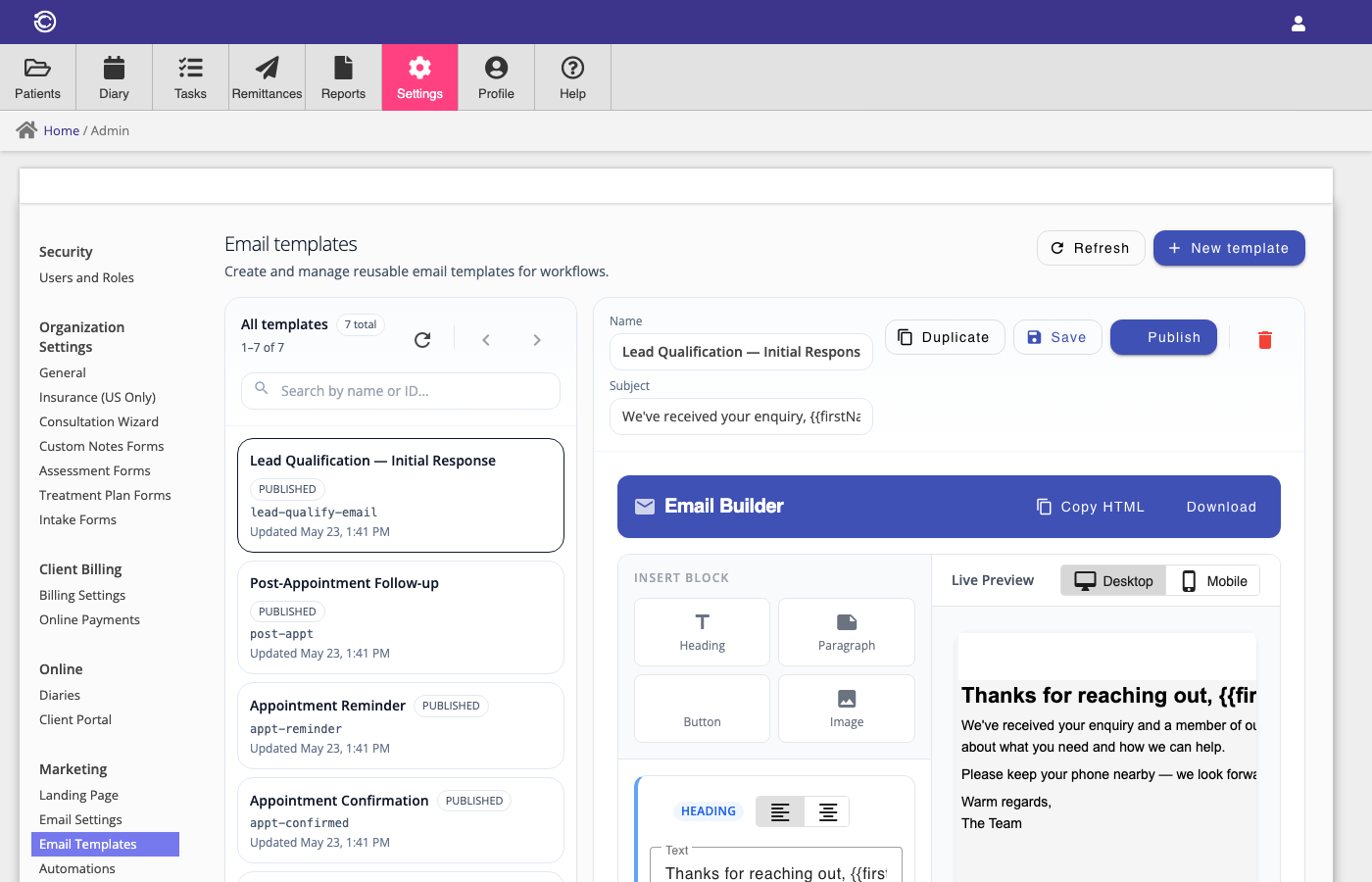
Email templates define the content of the emails sent by your automations. Each template has a subject, a sender name, and a body. Templates are managed under the Email Templates tab.
Creating a Template
Click the + button to create a new template. Enter a name and a subject line. You can then write the email body using the visual editor. When you are done, click Save to save the template as a draft.
Editing a Template
Select a template from the list to open the editor. Make your changes and click Save.
Publishing a Template
A template must be published before it can be used by an automation step. Click Publish on the template to make it available. Published templates are shown with a Published status in the list. You can continue to edit a published template — changes take effect for emails sent after saving.
Duplicating a Template
Click Duplicate on any template to create a copy with a new name. This is useful when you want to create a variation of an existing template without starting from scratch.
Deleting a Template
Click Delete on a template to remove it. Templates that are currently in use by a published automation cannot be deleted until they are removed from the automation.
Email Editor
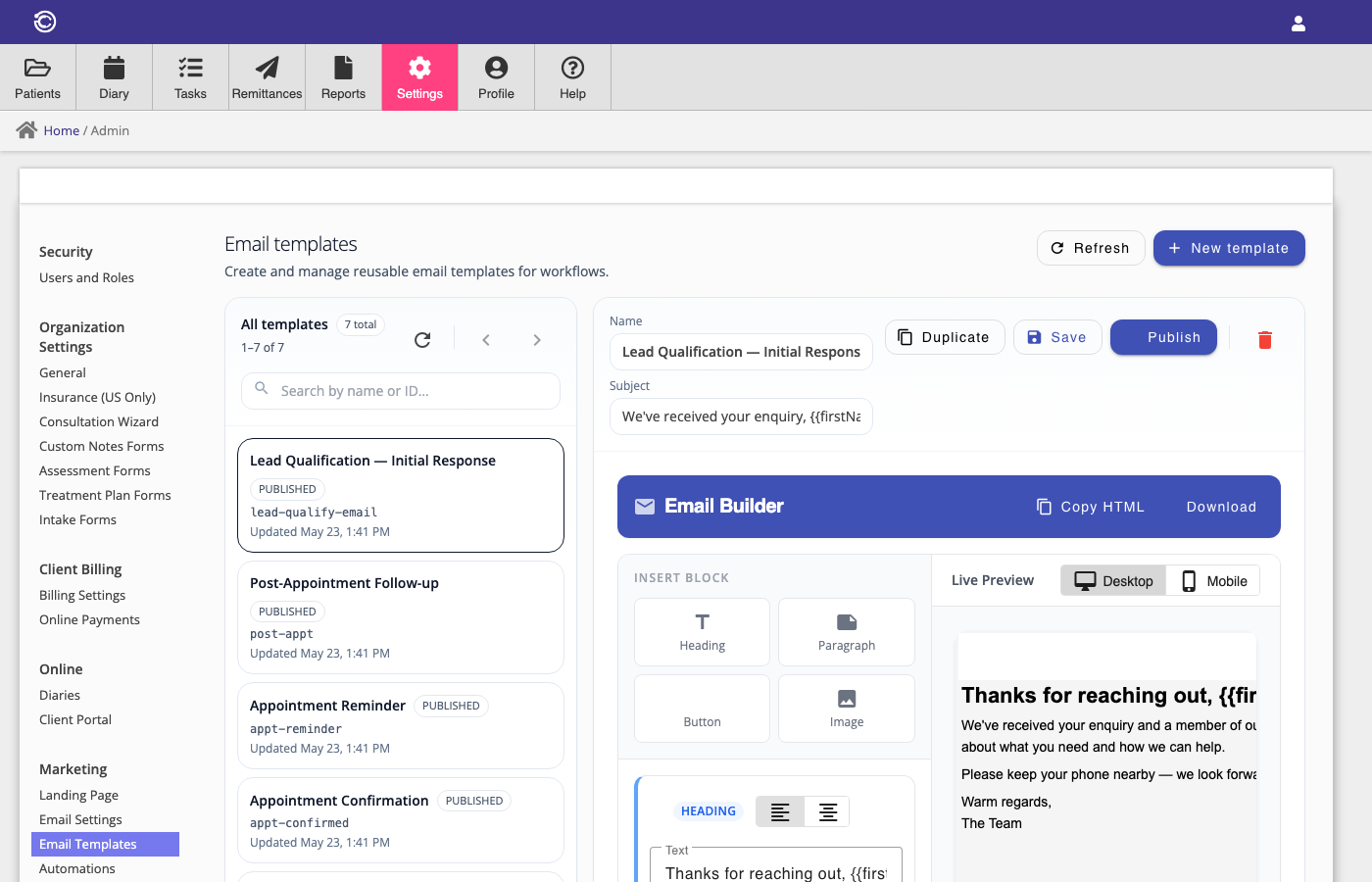
The email editor lets you build your email body visually using blocks. Each block is a content element that stacks vertically in the email.
Block Types
- Heading — A large text heading, useful for the opening line or section titles.
- Paragraph — A block of regular text. Use for the main body of your message.
- Button — A clickable button with a label and a URL link.
- Image — An image block with a source URL.
Alignment
Each block can be aligned left, centre, or right using the alignment controls.
Template Variables
You can personalise your emails using variables that are substituted automatically when the email is sent. The following variables are available:
| Variable | Description |
|---|---|
{{firstName}} |
The contact's first name |
{{lastName}} |
The contact's last name |
{{email}} |
The contact's email address |
Variables can be used in the subject line and in any paragraph or heading block in the body.
Example subject: We've received your enquiry, {{firstName}}
Email Unsubscribe
Every marketing email sent by Consultationly automations includes an unsubscribe link in the footer. When a contact clicks this link they are taken to a confirmation page and immediately opted out of further marketing emails from your practice.
Once a contact has unsubscribed:
- They will not receive any further emails from your marketing automations.
- Any automation steps that would have sent them an email are skipped.
- Their opt-out preference is stored on the contact record.
Unsubscribed contacts can be re-subscribed manually if they contact your practice and request to opt back in.
Note: Unsubscribing only applies to marketing automation emails. Transactional emails such as appointment confirmations sent directly from the calendar are not affected.
Default Email Templates
The following templates are created automatically for your account and are used by the built-in automations. They can be edited to match your practice's tone and branding.
| Template | Used by |
|---|---|
| Welcome New Patient | Welcome New Patient automation |
| Lead Enquiry Response | New Lead Nurture automation (first email) |
| Lead Follow-up | New Lead Nurture automation (follow-up email) |
| Appointment Confirmation | Appointment Confirmation automation |
| Appointment Reminder | Appointment Reminder automation |
| Post-Appointment Follow-up | Post-Appointment Follow-up automation |
| Lead Qualification — Initial Response | Lead Qualification Call automation |