Calendar
Appointments can be managed via the calendar module, where one or more calendars can be created by Consultationly users. For example, multiple calendars could represent multiple rooms or services within your practice. Calendars can be added and configured in the User settings menu.
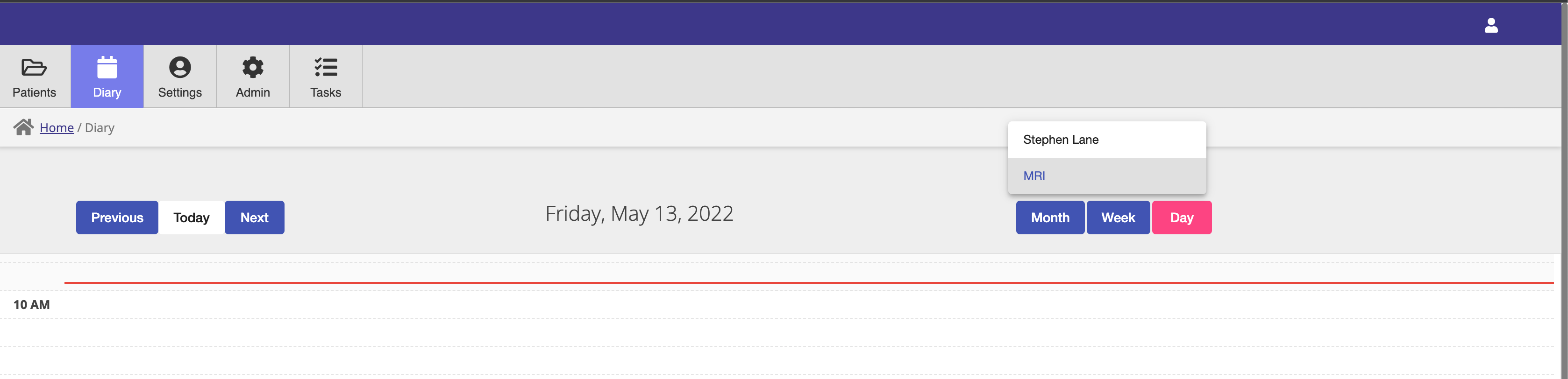
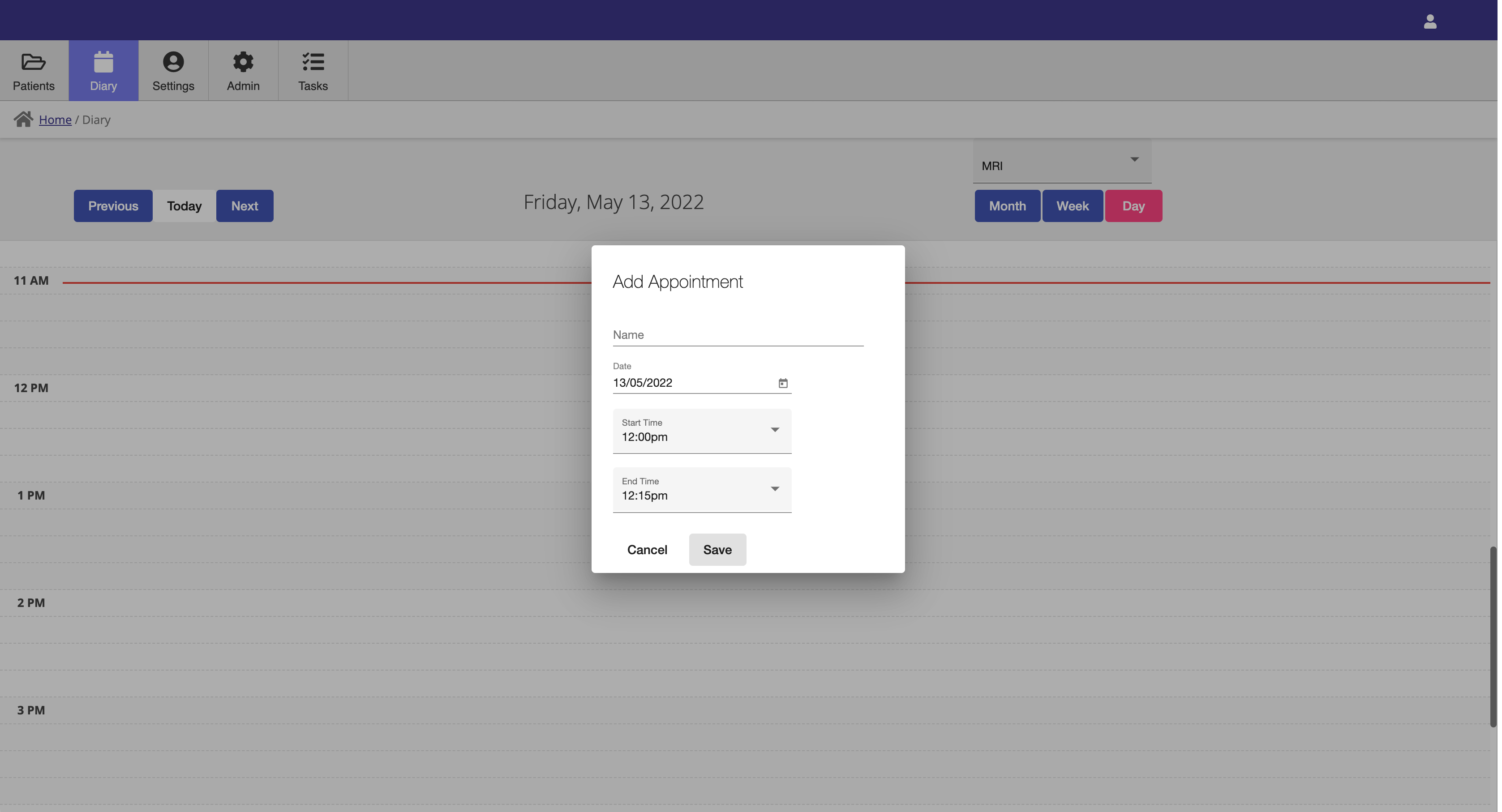
Calendar entires can be added by simply clicking on an available slot on the calendar to open the add calendar entry modal.
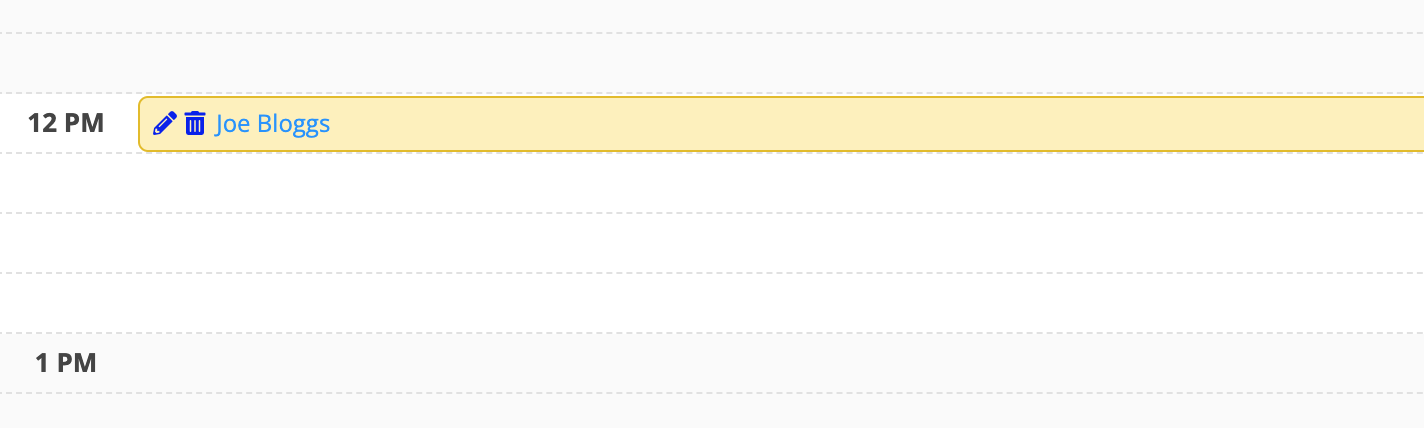
Calendar entires can be deleted or edited by clicking on the delete or edit icons on a calendar entry.
On-line Booking
When a calendar has been configured for Web booking in the User settings, users can book appointments online via you web booking link. Each calendar has separate on-line booking pages so booking for different resources can be segregated.
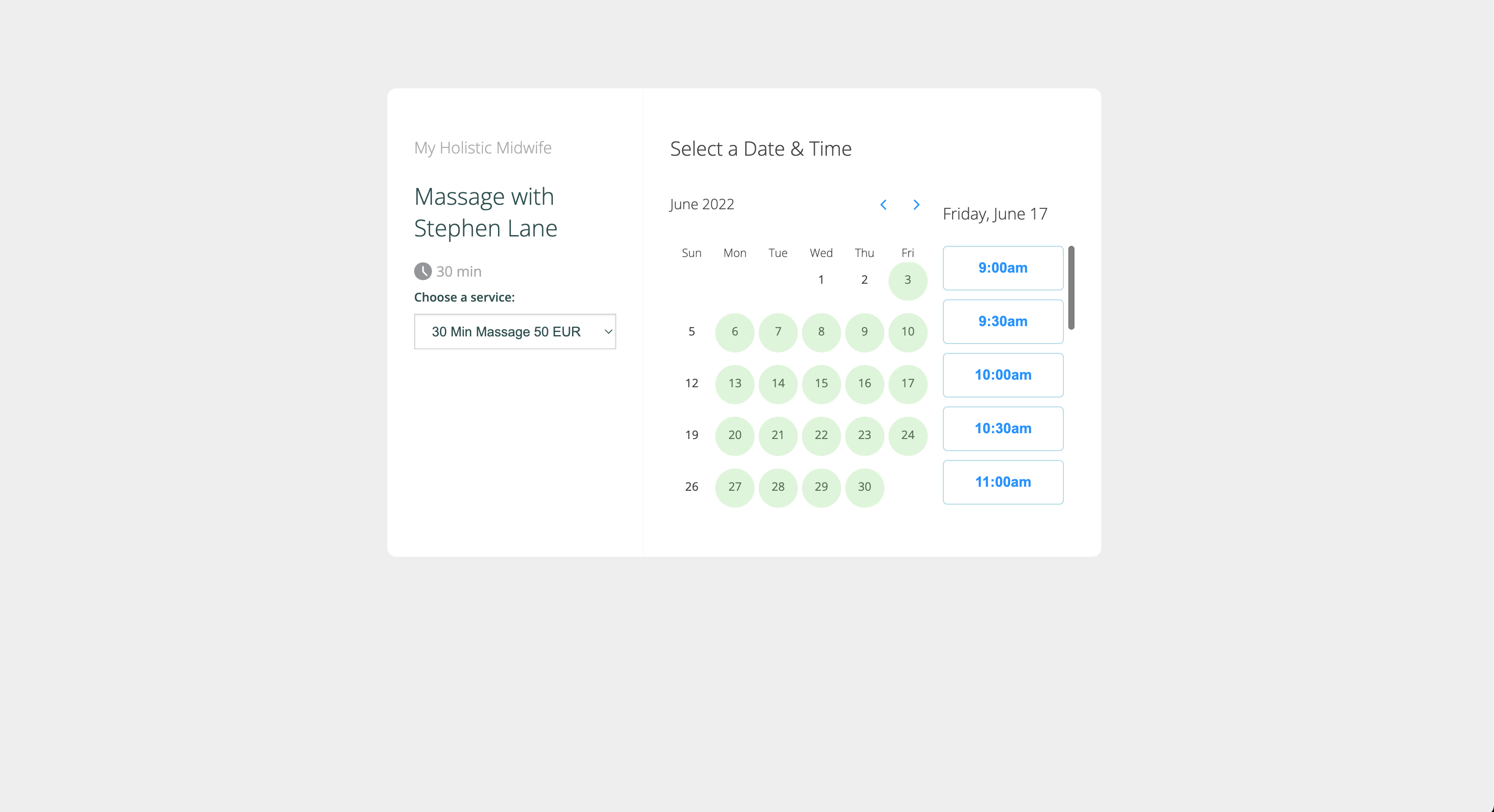
On-line booking pages can be used in isolation or can be linked form a Booking Website that are described in the Booking Website Page section